Let ChatGPT or Claude work in your browser.
FillApp connects the assistant you already use to your Chrome tabs and PDFs. Tell it what you need in chat. It can read the page, fill a form and make changes where you’re already working.
 ChatGPT
The FillApp connection is free. Your assistant’s plan and limits apply.
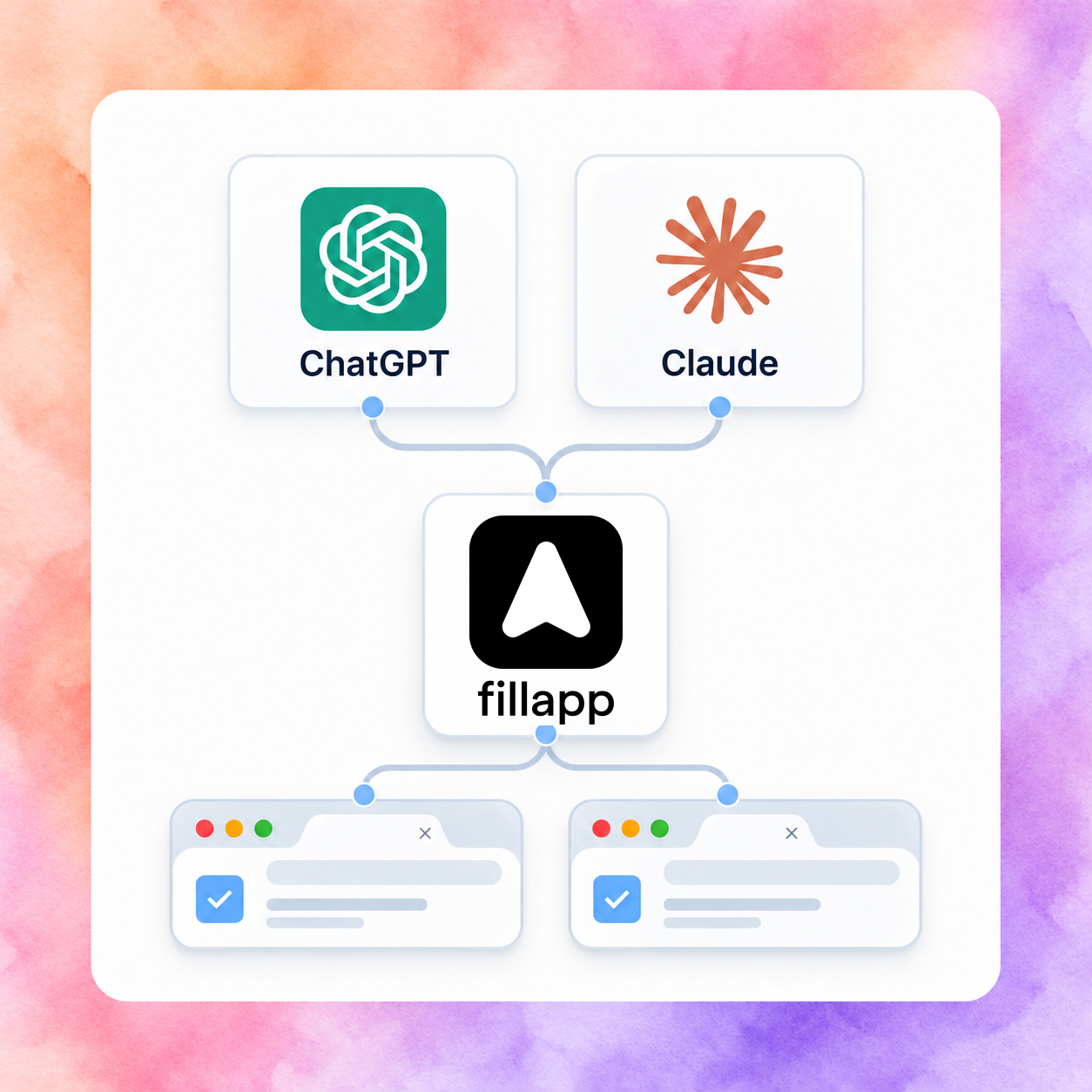
A few things you can ask it to do.
Fill a form
“Fill this application using my résumé. Leave anything you’re unsure about blank.”
Work across tabs
“Compare the plans in these three tabs and put the differences in a short list.”
Edit a PDF
“Update the company address in this PDF. Show me the result before I download it.”
Set it up once. Then ask in chat.
- 1
Install FillApp
Add the Chrome extension and sign in.
- 2
Connect your assistant
Add FillApp in ChatGPT or Claude, then approve access.
- 3
Start with a small task
Ask it to fill a few fields or edit a shared PDF. Check the result.
Before you connect
Is FillApp free with ChatGPT and Claude?
Yes. Connecting your own assistant to FillApp is free. Your ChatGPT or Claude plan must support custom MCP connections, and its usage limits still apply. FillApp’s own agent uses FillApp credits.
Does it use my existing browser tabs?
Yes. Install the FillApp Chrome extension, sign in and approve browser access. Your assistant can then work in your normal Chrome tabs, including sites where you are already signed in. Keep Chrome open and your computer awake.
Can ChatGPT or Claude edit a PDF with FillApp?
Yes. Open the PDF in FillApp’s editor and share that document with your assistant. Ask for edits, check the preview, then download the PDF or keep editing in FillApp. Keep the editor open while you work.
How do I stop access?
Use Stop remote control in the extension to pause browser access. Revoke the connection on the Connect FillApp page to disconnect it. PDFs are shared individually. Browser history and bookmarks stay off unless you enable Browser data.
Already using FillApp’s own agent? Keep using it as before. This is another way to use FillApp.