How to use ChatGPT or Claude in your Chrome browser with FillApp
Oct 10, 2026
5 min read
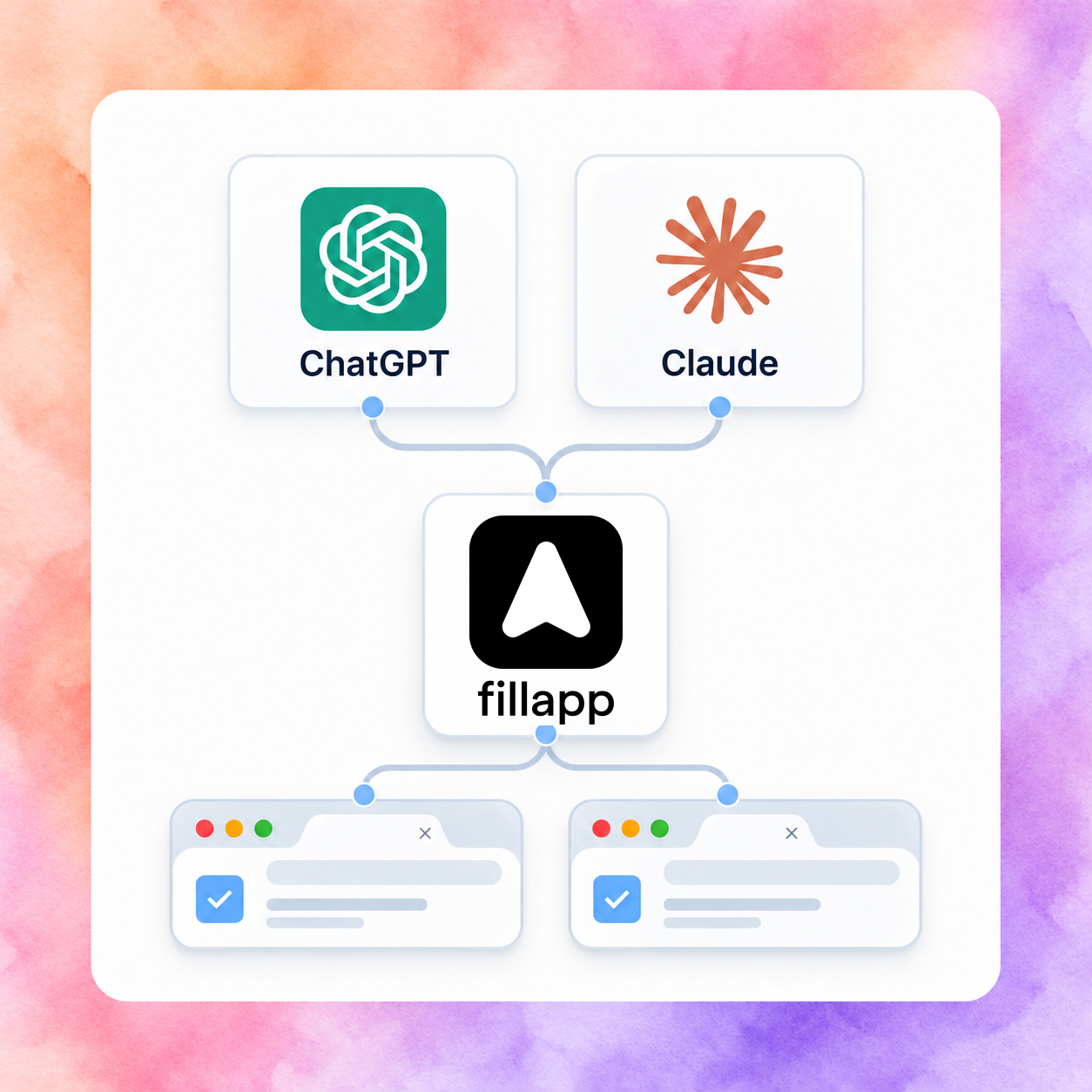
You can now use FillApp from ChatGPT or Claude. Ask your assistant to fill a form in Chrome, work across tabs or edit a PDF you share with it. You keep the conversation in the assistant you already use.
The FillApp connection is free. Your assistant’s plan needs to support custom MCP connections, and its usual limits apply. FillApp’s own agent is still available and uses FillApp credits.
What you need
- For browser tasks: Chrome on a computer, the FillApp extension, and a FillApp account.
- For PDF tasks: the FillApp PDF editor with the document open.
- A ChatGPT or Claude account that lets you add a custom MCP connection. A work account may need an administrator’s approval.
MCP is the connection your assistant uses to call FillApp’s tools. You don’t need to write code.
1. Get your browser ready
Install FillApp and sign in. Open the extension and click the link icon to open its connection page. Give your browser a name you’ll recognise, such as “Work laptop”. That helps your assistant choose the right device if you connect more than one.
Keep Chrome open and your computer awake while it works. Sign in to the same FillApp account when your assistant asks you to connect.
2. Connect ChatGPT
Open Connect FillApp and choose ChatGPT. In ChatGPT, open Plugins → Add → Add custom MCP server. Call it FillApp, paste the server URL below and choose OAuth.
https://api.fillapp.ai/mcp
Sign in to FillApp, review the access request and approve the parts you want to use. Enable FillApp in your chat before asking it to do a task.
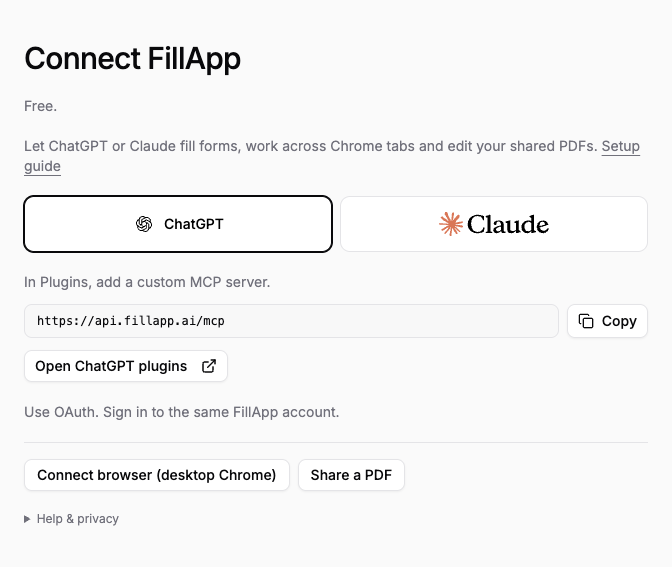
The setup page gives you the server URL and a link to ChatGPT. No API key needed.
Some ChatGPT accounts use the older Settings → Apps → Advanced settings → Developer mode layout. If you can’t add a connection, check your plan and workspace permissions. See OpenAI’s setup instructions for the current account requirements.
3. Or connect Claude
Choose Claude on Connect FillApp. In Claude, go to Customize → Connectors → Add custom connector. Name it FillApp and paste the same server URL. If it asks how to register the OAuth client, choose Register automatically.
Sign in to the same FillApp account and approve access. Enable the connector in your conversation.
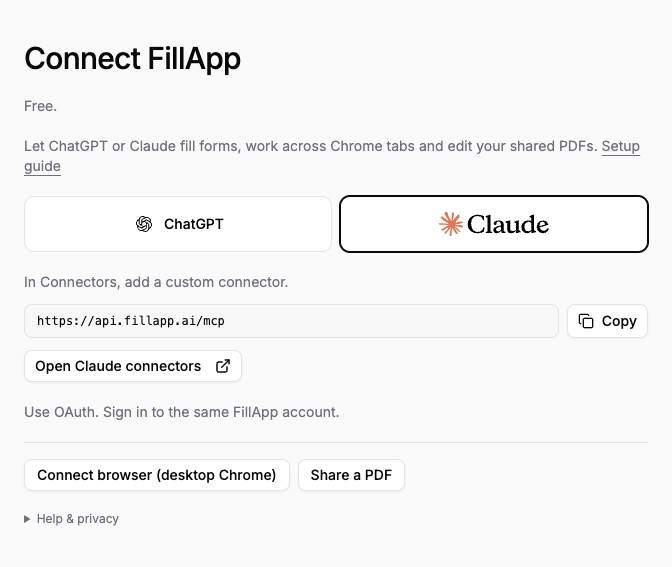
Use the Claude connector option if that’s where you already work.
If the custom connector option is missing, check Claude’s plan and setup requirements. The FillApp connection being free doesn’t change Claude’s account requirements.
Start with a small browser task
Open a form in Chrome and tell your assistant which browser and tab to use. For example:
On my Work laptop, fill the contact form in the CRM tab using these details. Leave the phone number blank and don’t submit it yet.
Or try a task across tabs:
Compare the pricing in the three tabs I have open. Give me a short list of the differences.
Be clear about what should happen at the end. “Fill it but don’t submit” is useful when you want to check the result first.
Edit a PDF, then check the preview
Open a document in the PDF editor, choose Connect ChatGPT / Claude and share that PDF. Keep the editor open while you work.
You can ask for a change, look at the result, then ask for another:
Change the company name to Northstar Studio. Put the new mailing address in the address fields. Show me the first page when you’re done.
The company name is too close to the next field. Make it smaller and move it slightly left.
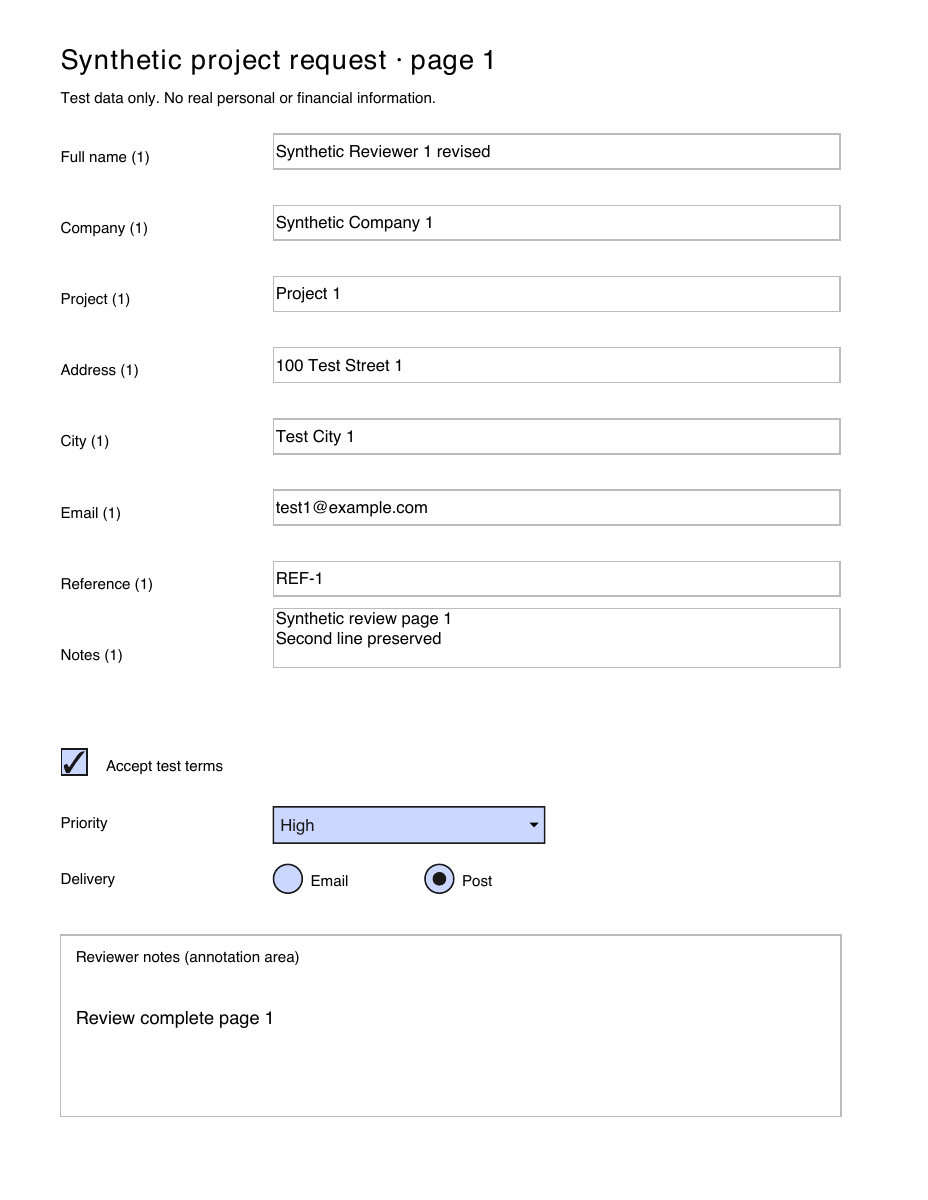
This is a preview from a FillApp editing test. The document contains made-up details.
Check the pages you changed. Download the PDF when it looks right, or open it in FillApp to keep editing. Temporary previews and download links expire after 15 minutes. If a link expires, ask for a fresh export while the document is still shared.
What’s shared, and how to stop
Approving browser access lets your assistant work in your normal Chrome tabs, including sites where you’re signed in. Browser data, such as history and bookmarks, is a separate setting and stays off unless you enable it. PDFs are shared one document at a time.
Use Stop remote control in the extension to pause browser access. To disconnect the assistant, revoke its access on Connect FillApp. The connection otherwise stays active until you revoke it.
If it says no browser is connected
Check that Chrome is open, FillApp is enabled, and the extension’s connection page says Browser ready. The website, extension and assistant connection must use the same FillApp account. If you have several browsers connected, ask your assistant to list them and name the one you want.
See what you can do with the free connection, or open the setup page.