How to schedule browser tasks and get email updates
Oct 15, 2026
4 min read
Tell FillApp which website to check, how often to check it, and what should count as a result. It can run the browser task on a schedule and email you when it finds something worth reporting. For example, you can ask it to check an apartment search for new listings that match your budget.
Give it a page, a schedule, and a condition
Open the search page you want checked and sign in if the site requires it. Then ask FillApp:
Check this apartment search every hour for new listings under $1,500 a month. Email me the price, neighborhood, and listing link for each new match. Do not email unchanged results. Keep checking until I stop the task.
The page tells FillApp where to look. The budget tells it what qualifies. Asking for new matches tells FillApp to report new listings rather than repeat unchanged results.
For a first run at a particular time, include the date, time, and time zone in your request. Check the saved next-run time rather than relying on a phrase such as “tomorrow morning.”
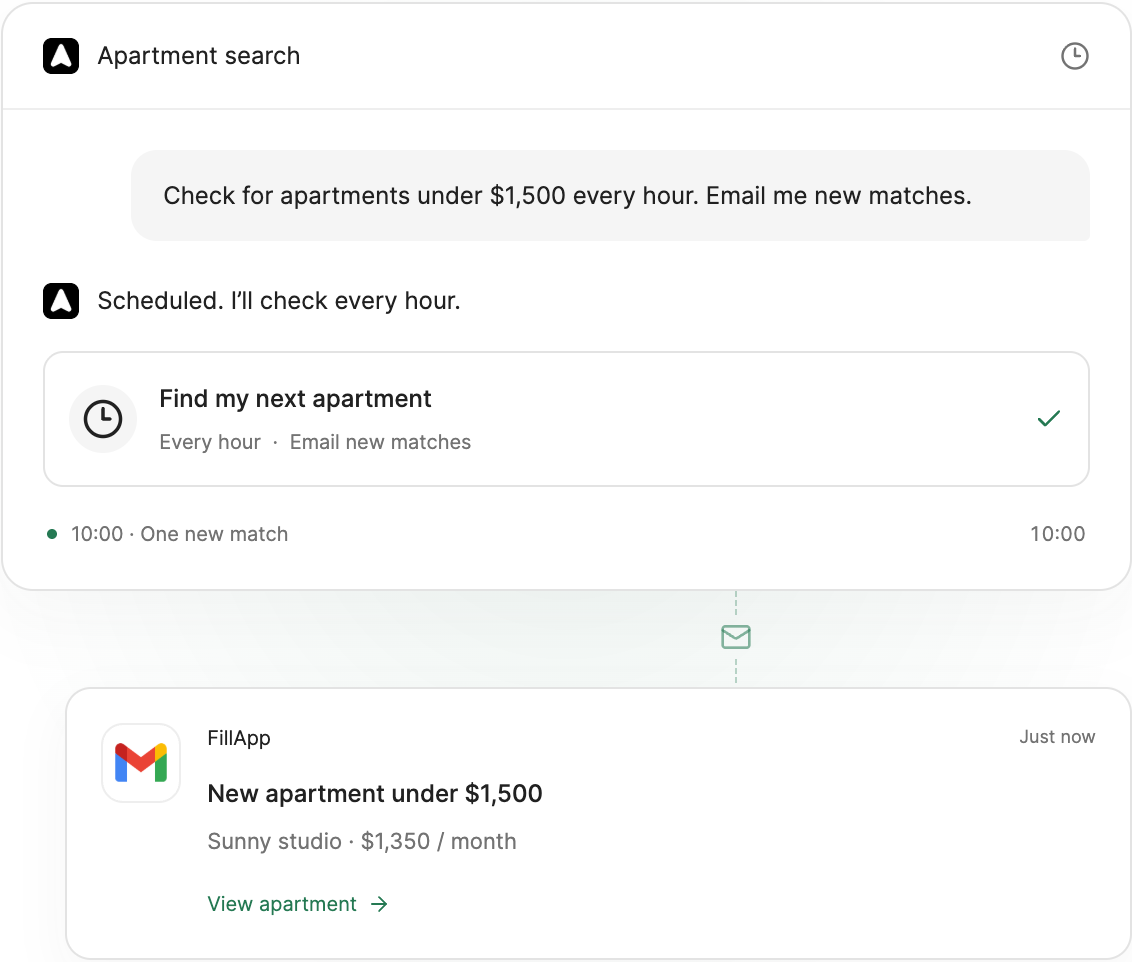
The release demo shows an hourly check and an email with a matching listing.
Check the saved task
Open Scheduled tasks in FillApp and select the task. Review its instructions, repeat interval, next run, and Stops when condition. Use Run now if you want to check the instructions before waiting for the next scheduled run.
Read the result in History and check the actual links or values it found. If the result is too broad, open the task's chat and tighten the instructions. For example, add a neighborhood restriction rather than leaving “near the center” undefined.
Choose this browser or a cloud browser
A local scheduled task needs Chrome open on the computer assigned to it. Keep that computer awake when you expect it to run.
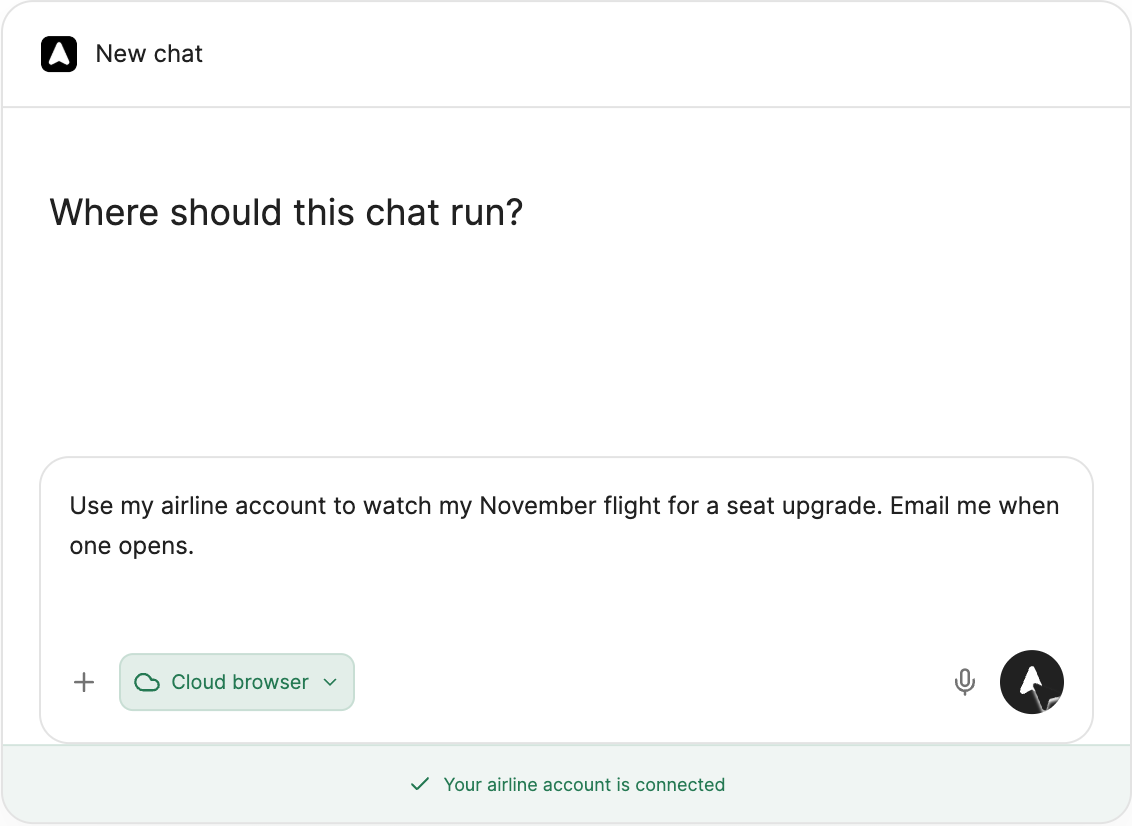
To run checks remotely, first connect that website through Continue in cloud to save its cloud profile, even if the page does not require a login. Then turn on Run in cloud in the task settings when it is available. If the site needs a login, make sure the cloud browser has a working session for that website. The browser-session transfer guide explains how to move selected website sessions to the remote browser.
A schedule checks at intervals; it is not a live feed of every change on the website. If you need more frequent checks, change the repeat interval and review the task's next run.
Decide which results should reach your inbox
Turn on Email findings in the task's notification settings. State what an email should contain, such as the listing link, price, and why it matches. Ask for email when a check finds a new match or another result you want reported.
Browser notifications have a separate switch. You can change those notification settings without creating a second task.
Pause, change, or finish the task
Use the task's active switch to pause or resume it. Open its chat to change the instructions or the schedule. If you only need the first matching result, ask it to stop once that result has been found and reported.
A task that needs a login, verification, or missing information can pause with Needs attention. Open the linked chat, resolve the problem, and resume the task.
Choose Stop task to end future runs while keeping the history. Use Delete task if you also want to remove the task and its run history. Deleting the task keeps the original chat.
For an action you want to run yourself from a saved button, use a website shortcut instead. The FillApp 2.2 update includes demos of shortcuts, scheduled tasks, and the cloud browser.