How to create website shortcuts in Chrome with FillApp
Oct 15, 2026
3 min read
If you keep asking FillApp to do the same thing on a website, save that action as a shortcut. You can run it again from the Shortcuts library without repeating the prompt. These are saved website actions, such as downloading product photos or changing a page's layout, rather than keyboard shortcuts.
Start with one action on one website
Open a page you use regularly, then open FillApp in Chrome and sign in. For example, open a product page in your own shop and ask:
Create a shortcut called Download product photos for this shop. When I press Play, download the product photos on the current page. Exclude the logo, icons, and related-product thumbnails.
Naming the page elements makes the result easier to check. A request to download “all images” could also include navigation icons or recommendations you did not want.
FillApp inspects the page and builds the action for that website. If the wrong images were included, point out which ones and ask FillApp to change it.
Choose a shortcut or an automation
A manual shortcut does the action when you press its Play button. Use this for something you want to choose each time, such as downloading photos or copying a table.
An automation adds behavior when a matching page opens. Use this for a reading view, a page button, or a layout change you want on that website each time. For example:
Create an automation for articles on this website. Hide the sidebar and promotional panels, and keep the headline, article text, and article images. Turn it on when I open an article here.
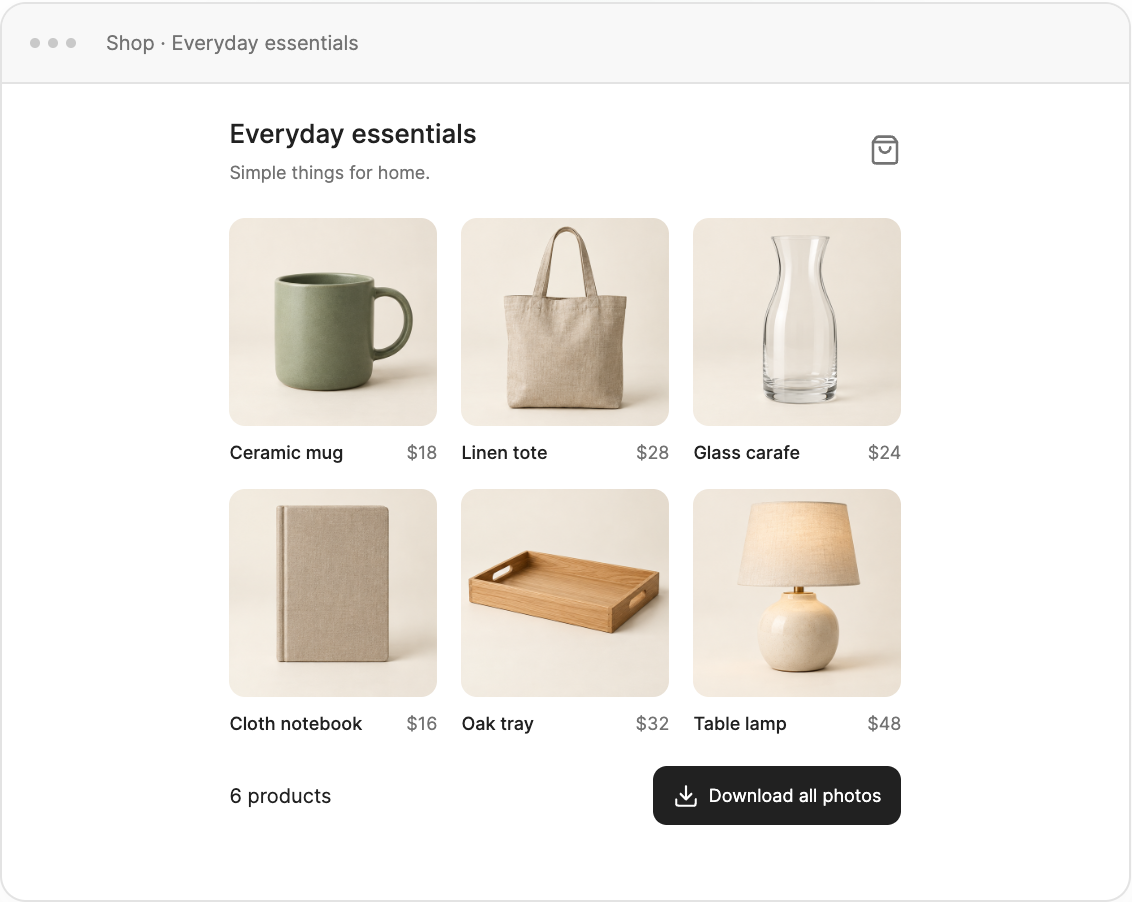
The release demo shows an automation that adds a download button to a shop page.
Keep the website restriction specific. A layout change written for one publication may remove the wrong elements on another.
Test the result
Open the Shortcuts library in FillApp and find the saved item. If FillApp shows Enable page shortcuts, choose Open settings and turn on Allow User Scripts for FillApp in Chrome. Return to FillApp and choose Check again. This setup applies to page shortcuts that need it; not every shortcut uses that setting.
Use a page that matches the saved item's website and ask FillApp to test it. A manual shortcut must pass its test before it is published and ready to run. For an automation, check the tested result before turning on its switch.
For a download, open the saved files. For a reading view, check that the article is still readable and its images are present. Ask FillApp to repair the shortcut if the result is wrong, then test the changed version again.
Find it again, change it, or turn it off
Saved shortcuts remain available across chats in the same Chrome profile. Manual actions have a Play button; automations have an on/off switch. The item's menu includes Edit and Pin.
If a website changes its layout and the shortcut stops working, open the affected page and ask FillApp to update that shortcut. Turn an automation off while you work out what needs changing.
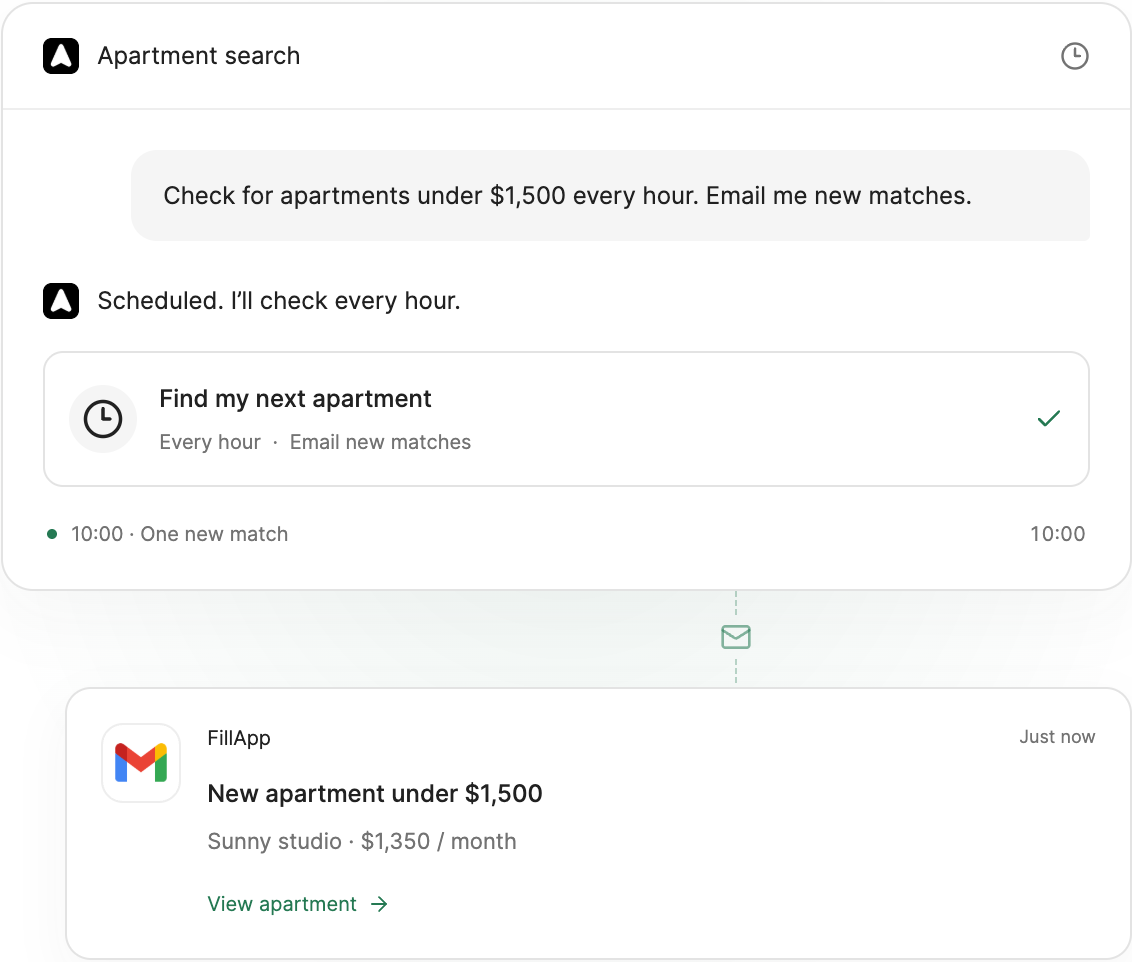
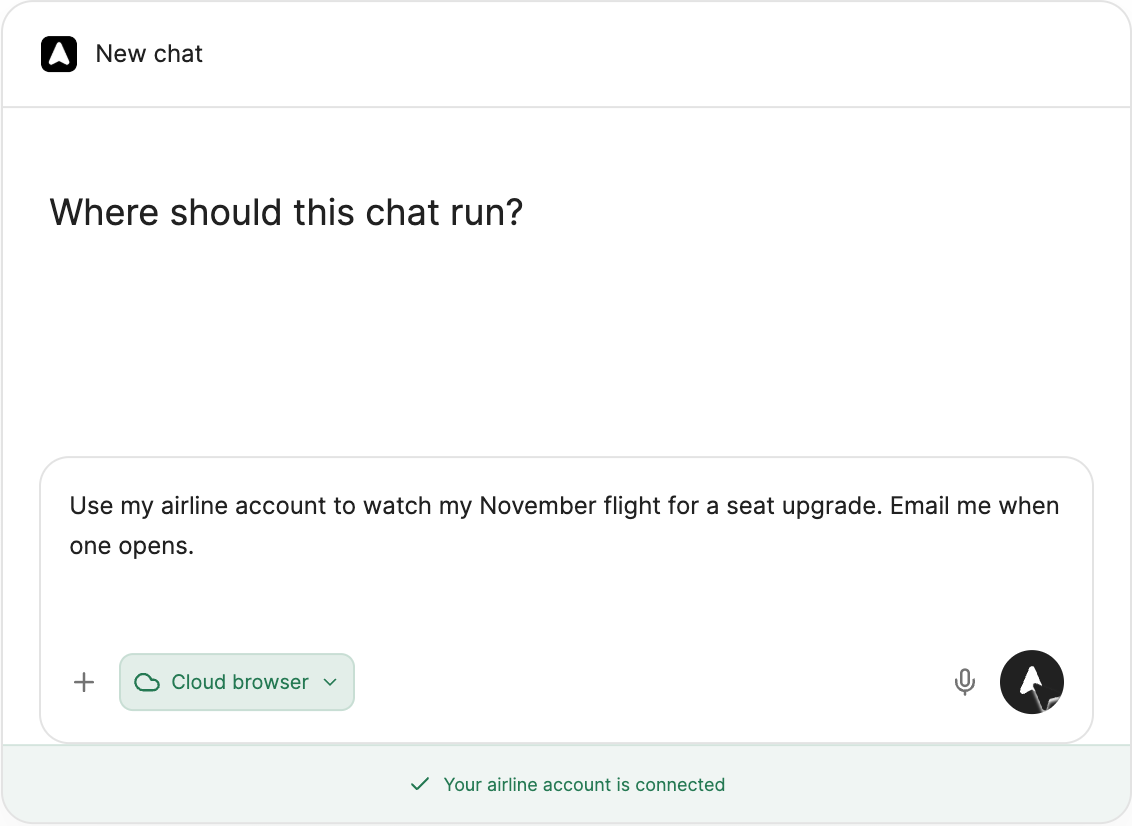
When you need a schedule instead
Manual shortcuts run when you start them; automations run when a matching page opens. If you want a website checked later without opening it yourself, use a scheduled browser task. The FillApp 2.2 update shows both features in use.