Move a browser session to the cloud and continue the same task
Oct 15, 2026
3 min read
You can start a FillApp task in a signed-in website, then move that same task to a remote browser. FillApp carries the conversation forward and copies session data for the websites you select. You do not need to start a new chat and explain the task again.
This is useful when a task needs more browsing and you want to leave your computer. For example, you might start comparing products in three supplier catalogs, then continue that comparison in the cloud.
Move the current task to a cloud browser
- Open a public HTTPS website in a regular Chrome window, then open the task in an Agent chat in FillApp. Keep any other websites it needs open in tabs in that same window.
- Open the browser-location menu and choose Cloud browser.
- Review Websites to include in the transfer dialog.
- The current website is included automatically. Use Include other websites to select other open sites the task needs.
- Choose Continue in cloud and approve Chrome's cookie-access request if prompted.
You can include up to four other websites alongside the current one. Select only the sites the task needs.
If Cloud browser is disabled, check that you are in an Agent chat on a loaded public HTTPS page, outside incognito mode. Finish any connection operation already in progress. Availability can also depend on your account or extension version.
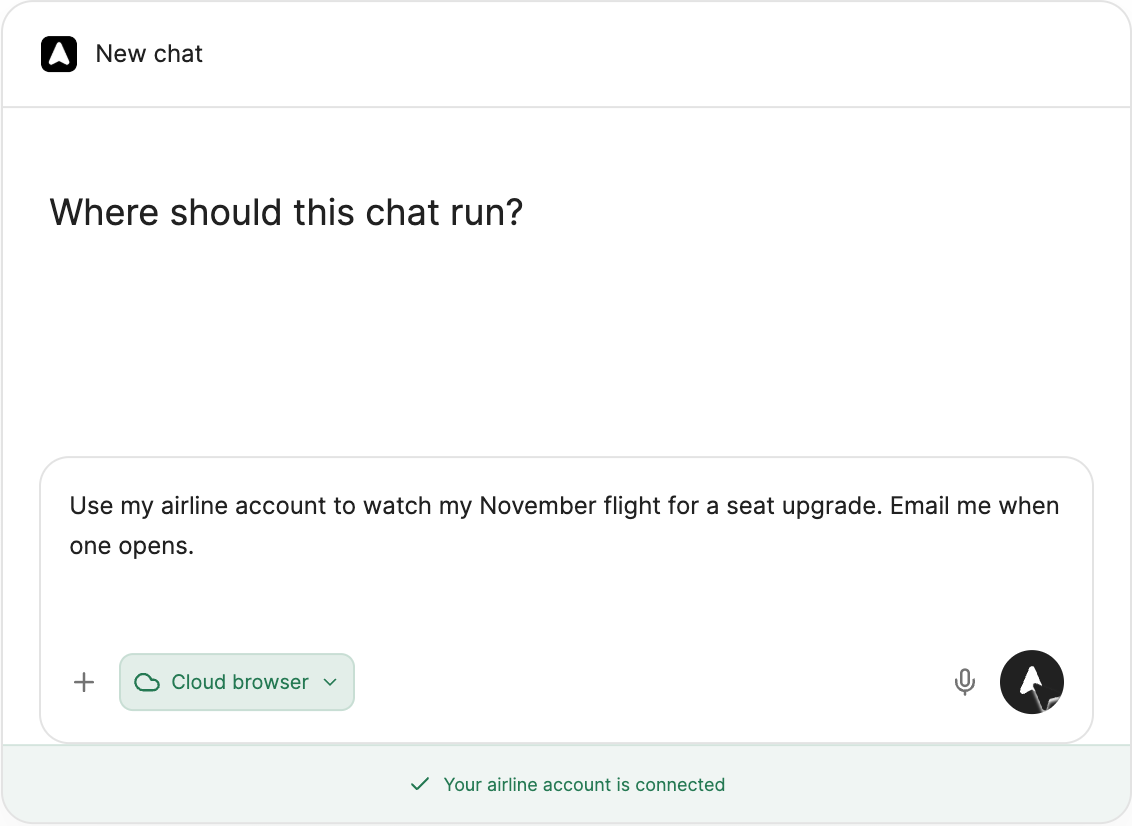
The release demo shows Cloud browser selected in the browser-location control.
What moves with the session
FillApp copies the selected websites' cookies, local storage, and session storage to the remote browser. That lets the remote task use sign-in state those websites store there. The transfer is not a copy of your entire Chrome profile or your password manager.
A website may still ask you to sign in again or complete a verification step. Check that the remote browser can reach the pages the task needs before leaving it to work.
Continue with the instructions already in the chat
After the transfer, the task continues in the cloud with its existing conversation. If you need to make the expected result more specific, add a message in that same chat:
Continue comparing these three supplier catalogs. For each matching product, report its name, pack size, unit price, and page link. Do not place an order.
Check the remote task
After connecting, open the browser-location menu and choose View cloud browser to inspect the active remote browser. Check that it has the pages and sign-ins the task needs.
Work can continue after Chrome closes only with an active cloud connection that supports unattended execution. The cloud option describes that connection as Keeps working after you close this browser. A connection described only as Uses a remote browser for this task does not provide that confirmation.
If a Cloud connection interrupted dialog appears, use Retry when available and check the remote browser again. Website sessions can expire, so a task may need your help with a later sign-in.
To bring the chat back to your computer, choose This browser in the same menu.
When the task needs to run again later
Transferring the current task does not create a recurring schedule. Use scheduled browser tasks when you want checks at a set interval and email when there is a finding. See the other changes in the FillApp 2.2 update.